Signing up and logging in
Signing up on the "Sign up" page creates your own organization (for example, your FOP) and makes you the Owner with full access. During sign-up you choose how you work: a solo freelancer or the head of a mini-agency — the second option, right after confirming your email, takes you to the "Team" page so you can conveniently invite colleagues.
After signing up you'll get an email with a confirmation link — you can't log in without following it. If the email didn't arrive, check "Spam" and that the email address was entered correctly.
Team and roles
On the "Team" page the Owner can invite colleagues by email — for example, an accountant who needs to see the finances but shouldn't be able to break anything.
- Owner
- Full access: the team, contractor terms and payouts, integrations and the plan.
- Editor
- Works with clients, contracts, transactions, taxes and Radar and logs their own time. Doesn't manage the team, contractor payouts or integrations.
- Viewer
- View only — handy for an accountant. Can't create, change or delete anything, and has no cabinet or payouts of their own.
- Provider
- Sees only their own cabinet: the contracts they were added to, their time, what they're owed, payouts and acts. Doesn't see the agency's income or the client's rate.
Editor or contractor? An editor is a colleague inside the agency (a partner or manager): they see and change all the operational work, but not the team or payouts. A contractor is a freelancer you pay: they see only their own contracts, time and money. If an editor is paid too, set terms for them on a contract — they'll get a cabinet with payouts and keep full access.
The invite is valid for 7 days. The Owner can change a member's role or remove them from the organization at any time, right on the "Team" page.
Clients and contracts
A client is the company or person you work with; a contract is a specific agreement with them (hourly, fixed price, or retainer).
Every active contract has a status — “On track”, “Needs attention” or “At risk”. It equals the worst of the four signals rather than their average, so one serious problem is not lost among healthy numbers.
- Hours budget: how much of the allocated time is already worked.
- Momentum: whether the pace of work over the last 2 weeks dropped versus the average.
- Deadline risk: whether there is enough capacity to finish before the contract ends.
- Real rate: whether the actual hourly rate is lower than the one stated in the contract.
Time tracking
Time entries are tied to a contract and split into billable (by the client) and internal (administrative, unbilled). The page shows a breakdown by day and client for the last 30 days.
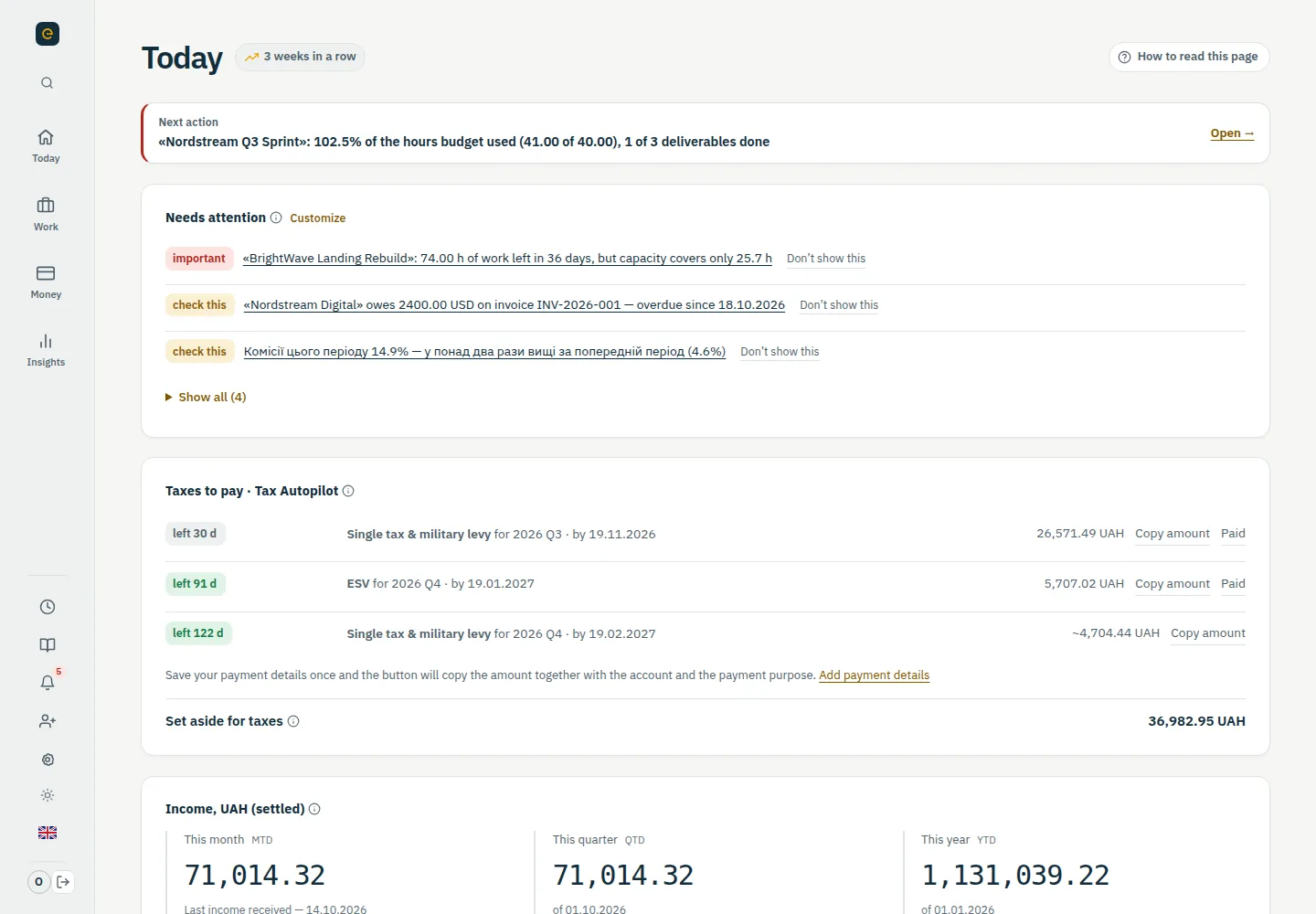
"Today" has "Quick-log time" — you pick a contract and hours, and the date and category ("Billable") fill in automatically, no need to go to a separate page.
Transactions and money states
The most important concept in the app — money passes through 5 sequential states before it becomes real FOP income:
-
1
Logged
The client has accrued the earnings but has not paid them out yet.
-
2
Pending
Upwork’s security hold period.
-
3
Available
The money is available to withdraw.
-
4
In transit
A withdrawal to Payoneer or a card has been started.
-
5
Settled
The money has actually arrived — and only this state counts as FOP income.
The other states are “money in transit”: they can still change, so they do not enter the tax calculation.
Transactions can be entered by hand, pulled from Upwork directly or imported from a CSV statement — the import checks the file against what is already stored and lets you choose what to load (all / only new / from a date), so nothing is duplicated.
Money flow
Shows the whole path from accrued earnings to money in hand: minus the Upwork fee → withdrawal to Payoneer → minus the Payoneer fee → FOP card → estimated taxes. Useful for seeing how much the fees "eat" at each step.
Upwork directly
Connect Upwork in Integrations — through the official API, read-only. Transactions, contracts and daily hours come in on their own; “This week on Upwork” shows hours, amount and the estimated date the money becomes available. Free on every plan.
Gignal keeps Upwork data for no longer than 24 hours. A row becomes a record in your books only when you add it. Rather not connect? Upload the transactions CSV — same result, and re-importing updates existing rows without duplicates.
Job radar
Radar finds Upwork jobs that fit your skills — from your keywords, your Upwork profile and the jobs you saved. Each gets a score and an explanation: how well it matches you, whether the terms pay off after fees and taxes, and whether the client is reliable.
In Radar settings you can filter clients by spend, rating and country. On Pro, new jobs come to Telegram — from every 5 minutes to once every 3 hours.
Telegram bot
Connect the bot in Integrations with a one-time code. Send “500 usd” — the bot records the income and suggests a contract with a button. Balance, invoices, “Needs attention”, daily summary, team and Radar — as buttons at the bottom of the chat.
Contractors and payouts
For agencies: on a contract you set a contractor's terms — percent, hourly or monthly. The contractor logs time in their own cabinet, you review the week against Upwork and approve, and Gignal works out who is owed what, the contract margin and PDF acts. New terms apply from the chosen date — history keeps the old ones.
Week reconciliation compares the team's hours with what was billed to the client (from Upwork). If the team fit within the billed hours (0.5 h tolerance), a finished week approves itself; billed hours beyond the team's are yours. Mismatches, direct-client weeks and weeks a contractor submitted wait for your decision: “Approve” or “Return” with a comment. The current week is marked “In progress”.
Owed includes only approved time, bonuses and milestone payments, minus deductions and what's already paid. “Monthly payout” shows everyone on one screen: mark them paid in one click, export a CSV for the bank and open the acts. Paid more than accrued — that's an “advance”, counted towards the next payout.
Stats show each contract's income after fees, what went to the team, your margin, people's utilisation and unbilled hours.
Currency, rate and withdrawals
The questions that come up most often about dollars, the exchange rate and withdrawals — and what Gignal actually does about each.
Which rate income is counted at
At the NBU rate on the date the money landed in your account — not the date you sold it at the bank, and not the date you earned it on Upwork. That is why a transaction carries its own settlement date: it decides both the rate and the quarter.
Which amount the tax is calculated from
From the full amount the client paid, before Upwork and Payoneer fees (gross) — the more cautious option. The date and NBU rate are those of the day the money reached the FOP account. If a withdrawal was entered by hand and the full amount is unknown, Gignal uses the amount after fees and says so. Both amounts are on Money flow: "Earned (gross)" and "On the FOP card". If your accountant treats only what reached the account as the base, agree with them which one to file.
Exchange-rate difference
If you sold the currency above the NBU rate for the settlement date, nothing is lost in Gignal: income is recorded at the settlement-date rate, and the calculator adds no extra income on top. How to present that difference in your filing is a question for your accountant, not for a calculator.
The end of the quarter
Income is recorded on the settlement date, so withdrawing on 1 July instead of 30 June moves the whole amount into the next quarter — with a different rate and a different payment date. Accountants advise withdrawing to the FOP account before the reporting period ends; whether that is a hard requirement is a question for yours. Two weeks before the quarter closes, "Needs attention" on the dashboard shows how much you are holding in the "Available" state and the date the quarter runs to.
The Payoneer withdrawal minimum
Payoneer will not withdraw amounts under $50 — below that, the money simply waits for your next earning. You can also withdraw to a hryvnia or foreign-currency account at a Ukrainian bank; in Gignal that is the "Direct bank transfer" route, which has no intermediate Payoneer step.
What about Wise?
There is no separate Wise import yet: such payments are entered by hand as a direct transfer. Whether Wise suits your particular FOP is a question for your bank and your accountant — Gignal gives no advice on that.
Group 3 FOP tax calculator · NBU rate for a date · Tax calendar
This describes how Gignal calculates, not tax advice. Check the base, the rates and the filing deadlines with an accountant.
Capacity
Shows how many hours a week you're already committed to across active contracts versus the weekly goal you set yourself. If the load exceeds the goal, the week is flagged as overcommitted.
Taxes
A calculator for group 3 FOP: computes ЄП (5% of income), ВЗ (1% military levy), and ЄСВ (a fixed amount per quarter) from income in the "Settled" state, converted to hryvnias at the NBU rate on the settlement date.
This is a calculator for guidance, not official tax reporting — check the final figures for filing with your accountant or the tax office.
If you have no FOP, tax tracking can be turned off in your profile — the tax sections disappear and clients, time and money tracking stay.
Accountant pack
One ZIP with everything an accountant asks for over a period: every income transaction with the NBU rate for its settlement date, expenses, rows from imported bank statements, the attached invoices, and a summary with income since the start of the year and what is left of the annual limit. Two views: by month, which is how an accountant keeps the books and asks for documents, and by quarter, which adds the ЄП, ВЗ and ЄСВ amounts and the payment deadlines.
The pack is read-only, so a Viewer can download it too: that is the role usually given to an accountant so they can collect the documents themselves. In the first days of the month, "Needs attention" reminds you that last month’s pack is ready.
Profile and notifications
In “Profile” you edit your personal details, time zone and language; the Owner can also rename the organization there. Changing the password is a separate item, with a confirmation email.
Once a week, if enabled, an email digest arrives with hours, income, effective rate and a list of what matters.
Subscription and billing
The owner subscribes to Pro on the Pricing page, monthly or yearly. The price is per active member, the owner included. Payments go through Paddle, which also handles the buyer's local taxes and sends receipts.
You can cancel under Profile → Subscription. Pro keeps working until the end of the period you've already paid for, and afterwards your data stays available to view and export.
If a charge fails, Pro doesn't switch off right away: Paddle retries a few times and emails you to update your card. Meanwhile your profile shows a “Payment failed” badge.
Once a subscription is active, the Pricing page no longer offers to pay again — a second subscription would mean a double charge.